
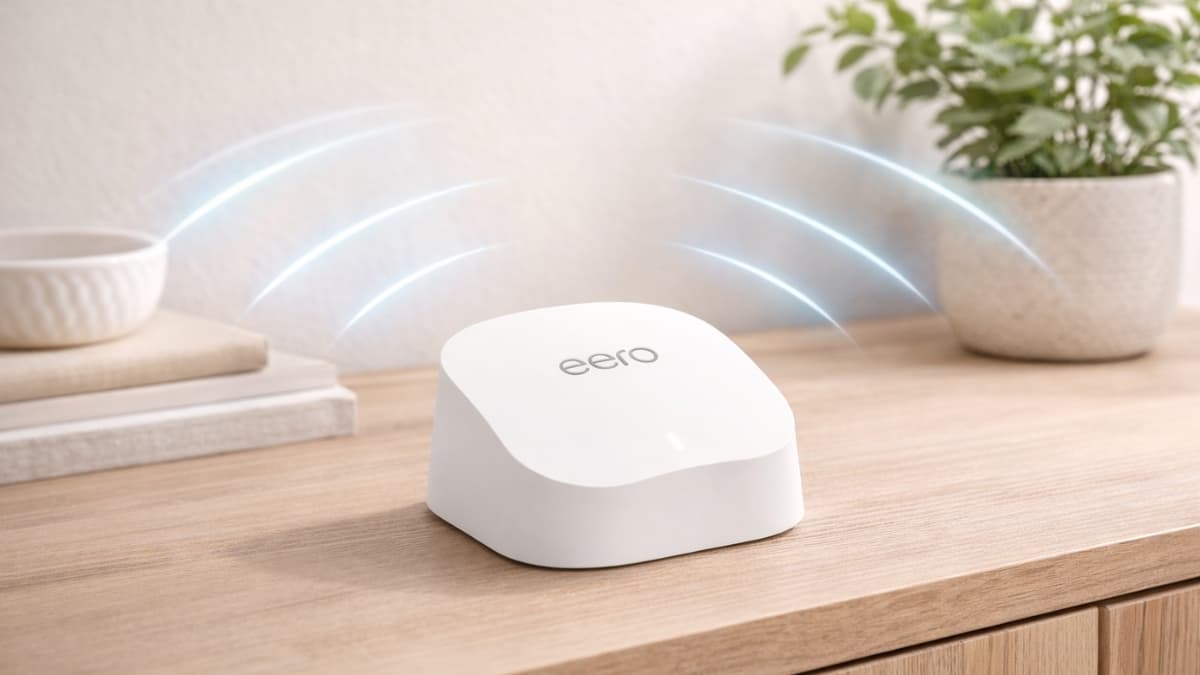
Eliminate Wi-Fi dead zones with the Amazon eero 6 Mesh WiFi Add-On Extender. Expand coverage, improve speed, and enjoy smooth connections at home.
Dead spots in your home network can feel like hitting a digital brick wall. You lose signal in a far room, video lags just as the plot twists, or a smart device drops offline at the worst time.
That’s exactly the problem the Amazon eero 6 Mesh WiFi Add-On Extender is built to fix. It expands your existing eero network’s coverage, adds efficient Wi-Fi 6 technology, and supports smooth connections across devices.
In this article, you’ll learn how it performs in real homes, what its strengths are, where limits appear, and ways to get the most from it.
What the Amazon eero 6 Mesh WiFi Add-On Extender Does
The Amazon eero 6 Mesh WiFi Add-On Extender plugs into your home to increase coverage and improve signal strength.
It’s designed to work only with an existing eero gateway or router — it does not operate as a standalone router by itself.
This device is part of Amazon’s growing lineup of mesh networking gear. In practical use, it adds roughly 1,500 square feet of coverage per unit to your Wi-Fi footprint.
That extension can bring connectivity into rooms, outdoor living spaces, or floors that were once dead zones.
How Mesh Networking Works in Real Homes
Traditional Wi-Fi extenders have a reputation for creating a second network that devices must hop between. That can interrupt streaming or calls when you walk around.
In contrast, the eero system uses a mesh network, where each device — including this extender — acts as a node.
Your phone or laptop logs onto one network name and stays connected as it moves. The system picks the best path for traffic without manual switching.
This translates to:
- consistent signal when walking from room to room
- fewer dropped calls or buffering pauses
- smoother connections for smart home devices
This advantage is why many households choose mesh over older Wi-Fi range extenders.
How This Device Fits a Mesh Wi-Fi System
The eero 6 extender is not a router. That means it must connect with a primary eero device already on your network. Once paired, it becomes part of a single home network managed through the eero app.
You can use this add-on with a range of eero routers, such as:
- eero (1st, 2nd Gen)
- eero 6
- eero Pro models
Make sure your existing router supports a mesh network, or the extender will not work.
Real-World Performance: Wi-Fi 6 Technology
This extender uses Wi-Fi 6, the newest widely adopted Wi-Fi standard. Wi-Fi 6 improves how the network handles many gadgets simultaneously. Compared to older Wi-Fi 5 devices, Wi-Fi 6 can:
- reduce congestion in busy homes
- make better use of available bandwidth
- send data to many gadgets with less delay
On paper, the eero 6 extender supports AX1800 speeds — meaning up to ~1.8 Gbps combined across 2.4 GHz and 5 GHz bands. In real use, that helps with:
- streaming 4K video in rooms that were once sluggish
- conducting business calls without dropouts
- browsing and gaming across many devices at once
Homes with 500 Mbps or lower broadband plans will generally see strong performance. In houses with gigabit internet plans, you might not hit top speeds across extended coverage areas, which is normal with many mid-tier mesh nodes.
Setup and Installation: What to Expect
Getting the eero 6 extender going is straightforward. You use the eero app on your phone to add it to your existing system. Here’s the step-by-step process customers report working well:
- Download and open the eero app (iOS/Android).
- Confirm your main eero router is online and working.
- Plug in the extender at a midpoint between the router and the weak signal area.
- Tap “Add Device” in the app and follow in-app prompts.
- Wait a few minutes for the extender to sync and show “Online.”
Most people complete this process in under 10 minutes.
The app guides placement by showing signal strength indicators. That alone can improve results dramatically compared to guessing where to put gear.
How to Place This Extender for Best Results
Placement strongly affects performance. Here are practical tips that work in real homes:
- Position the extender between the router and dead zone — not right next to the router.
- Elevate it on a shelf, not the floor.
- Avoid putting it inside metal cabinets or behind large electronics.
- Keep distance from appliances like microwave ovens or cordless phones.
Getting placement right often resolves the common issue of “still weak signal even after setup.”
Security and Network Management
The eero system includes modern security features:
- automatic firmware updates keep protections current
- WPA2 and WPA3 encryption supported
- guest networks created in a few taps
- basic parental controls
For deeper network security or content filtering, an optional eero Plus subscription adds extra features. Many households find the built-in tools alone are sufficient.
Typical Use Cases and Benefits
Expanding Coverage in Challenging Layouts
Homes with thick walls, multi-story layouts, or long corridors often see major improvement. Rooms that once had weak or no signal can suddenly stream media or accept video calls reliably.
Outdoor spaces like patios or detached workshops also benefit if the extender is placed nearby inside.
Streaming and Smart Devices Work More Smoothly
Once your mesh network has good coverage:
- streaming 4K in many rooms becomes standard
- multiple family members can watch different content
- smart devices stay connected across devices
This improvement can feel like an upgrade in daily life.
Video Calls and Remote Tasks
For many working from home or learning online, consistent connectivity matters. Households report:
- smoother video meetings
- fewer dropped calls
- flexibility to work from different rooms
Pricing and Value on Amazon
At typical US retail prices, this extender costs around $79.99–$99.99 on Amazon. Pricing can shift with sales, and certified refurbished units often run around $69.99 through Amazon Renewed.
When you compare this with:
- basic Wi-Fi extenders under $50 (which often create a second network name)
- premium mesh nodes over $150
The eero extender sits in a mid-range value zone. For many homes already in the eero ecosystem, the upgrade feels worthwhile.
Pros and Strengths in Everyday Use
Seamless Integration
Once added in the app, the extender inherits your network name and settings. You don’t manage separate logins for different parts of the house.
Simple App Control
The eero app gives network visibility and control without complicated menus. You can:
- see connected devices
- check usage
- manage access
- set up guest networks
Clean Design
Its compact white cube blends into living areas. You don’t have to hide it behind furniture.
Limitations and Things to Consider
Good performance comes with a few trade-offs:
No Ethernet Ports
This extender has no physical LAN ports. That means:
- no wired backhaul option
- you can’t plug wired devices directly into it
Some users with complex or high-demand setups prefer devices that support Ethernet.
Dependency on Your Main Router
If your main eero router struggles (signal or location), all extenders connected to it can feel the same limitations. Pain points often trace back to initial router placement before anything else.
Speed Caps at Mid-Tier Levels
Because this unit is AX1800 class:
- it’s solid for most homes
- it’s not designed to fully max out gigabit plans
That said, real-world Wi-Fi speeds rarely match advertised heads-up numbers anyway.
Industry Insight: What Reviews and Analysis Say
Tech reviewers consistently highlight mesh networking as a more user-friendly way to boost home Wi-Fi compared with old-school extenders.
Mesh nodes like the eero 6 add-on deliver a unified network name and automatic routing adjustments. Analysts mention that the biggest upgrade for busy homes isn’t peak speed, it’s consistent performance as devices shift around the house.
Studies on Wi-Fi 6 adoption show that homes with many connected gadgets — laptops, phones, TVs, smart sensors — benefit from Wi-Fi 6 features like OFDMA and MU-MIMO that improve multi-device throughput.
Tips from Users That Help Most
Here are use-tested tricks shared by people who fixed dead zones:
- Don’t place the extender too close to the router
- Reboot both devices after initial setup just to refresh connections
- Use the eero app’s signal strength meter to adjust placement
- If coverage is still patchy, add one more extender at another midpoint
These practical steps often resolve lingering weak points in coverage.
Who Should Choose This Extender?
You should consider the Amazon eero 6 Mesh WiFi Add-On Extender if:
- your home has weak Wi-Fi rooms or floors
- you are already using an eero router
- you want a unified network name instead of multiple SSIDs
- you prefer app-based control and ongoing updates
If you have very high-speed plans (1 Gbps+) and depend on Ethernet connections for wired gaming or servers, you might look at mesh units with Ethernet ports instead.
Conclusion
The Amazon eero 6 Mesh WiFi Add-On Extender delivers expanded Wi-Fi coverage in a way most homes will notice.
It enhances signal across rooms and floors, supports many connected devices, and fits neatly into eero networks. At typical pricing around $80–$100 on Amazon, it strikes a reasonable balance of performance and simplicity.
If your Wi-Fi has gaps, slow spots, or frustration in certain areas, exploring this extender on Amazon could answer those issues. You will also find other parts of the eero lineup that pair with it for broader network needs.
Click through to see current pricing, promotions, and user reviews on Amazon.